

The AI industry is evolving rapidly, with platforms such as ChatGPT and Claude becoming important tools for professionals, businesses, developers, and content creators.
Both platforms support a wide range of tasks, including content generation, research, coding, problem-solving, and business productivity. However, users who work with multiple AI assistants often encounter a common challenge: managing conversations across different platforms.
Imagine developing a business strategy in ChatGPT, creating technical documentation in Claude, and researching competitors using another AI assistant. Each platform maintains its own conversation history, making it difficult to access everything from one location.
This is why learning how to transfer AI conversations has become increasingly useful.
Instead of allowing valuable discussions to remain separated across multiple accounts, users can explore ways to export, import, organize, and reuse their AI conversation history.
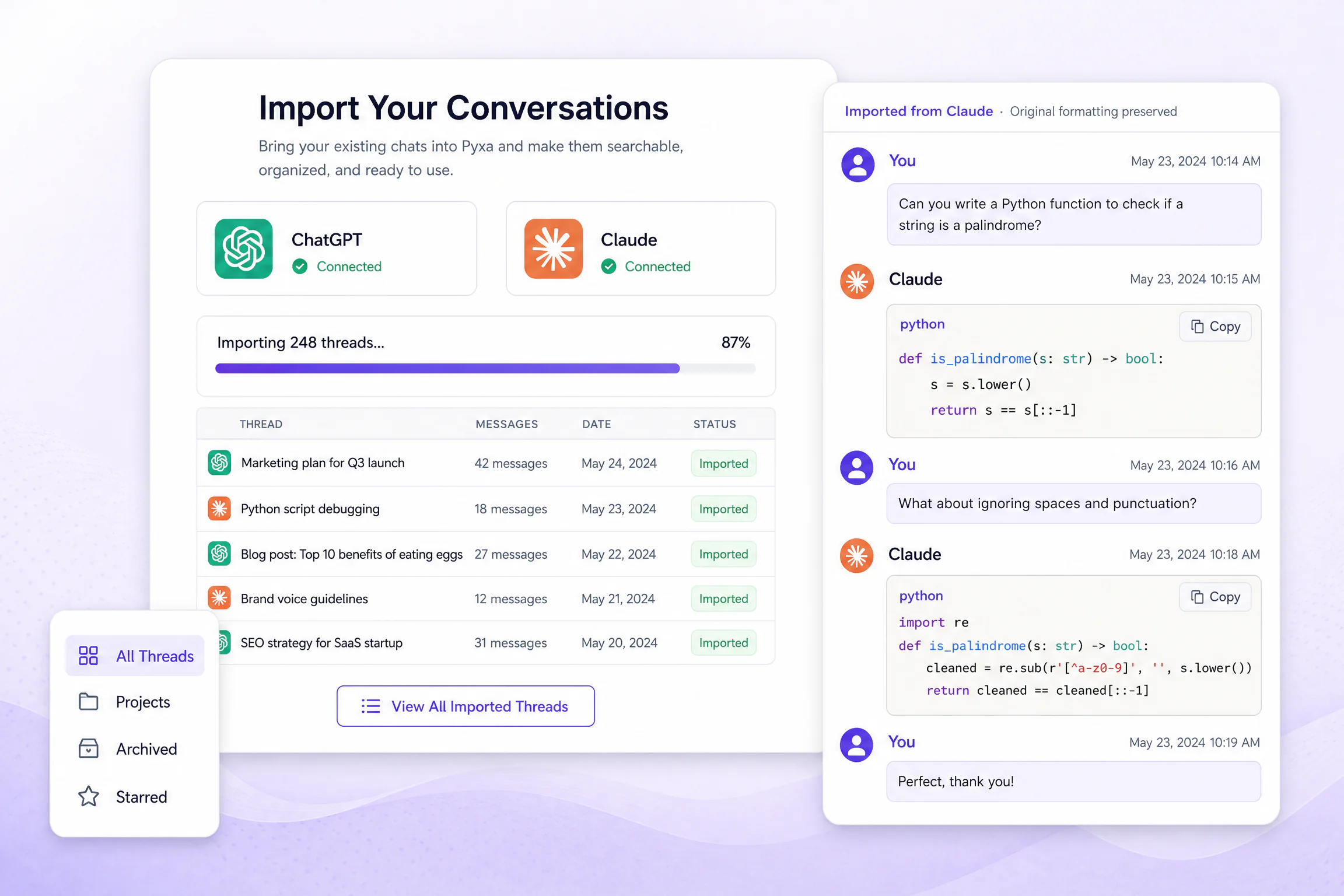
Pyxa.ai addresses this challenge through its Import Conversations feature, which supports importing exported histories from ChatGPT and Claude into one centralized dashboard.
Why Do People Use Both ChatGPT and Claude?
Choosing an AI assistant is not always an either-or decision. Different platforms can serve different purposes depending on the user's workflow.
ChatGPT for Everyday Productivity
ChatGPT is widely used for writing, brainstorming, research assistance, coding support, planning, and general problem-solving.
Professionals may use it to:
-
Develop content strategies.
-
Generate marketing ideas.
-
Analyze business requirements.
-
Prepare reports and presentations.
-
Write and review code.
-
Organize project information.
Its conversation history can gradually become a valuable library of previous work.
Claude for Writing and Complex Workflows
Claude is another popular AI assistant used for writing, document analysis, coding, research, and working through complex instructions.
Users may rely on Claude for:
-
Reviewing long documents.
-
Developing structured content.
-
Analyzing technical information.
-
Exploring programming solutions.
-
Improving written communication.
-
Working through detailed project requirements.
As users build more conversations in both platforms, keeping track of their information becomes increasingly important.
The Problem With Keeping AI Conversations on Separate Platforms
Using multiple AI assistants can improve flexibility, but disconnected conversation histories create several challenges.
1. Your Knowledge Becomes Fragmented
Suppose you use ChatGPT for keyword research and Claude for content development. Your SEO strategy may be distributed across several conversations in different accounts.
When you need to revisit a specific recommendation, you must remember which platform contains it.
This fragmentation can make research and project management less efficient.
2. Switching Platforms Can Interrupt Workflows
You may decide to use a different AI model because it offers capabilities better suited to a particular task.
However, switching platforms does not automatically transfer the complete context of your previous discussions.
You may need to explain your project requirements, objectives, and preferences again.
3. Important Conversations Become Difficult to Find
AI users frequently create multiple conversations every week. Over time, older discussions become buried beneath newer threads.
Finding an answer from a previous month can require considerable scrolling and manual searching.
4. Maintaining Multiple Subscriptions Can Become Expensive
Some users maintain subscriptions to several AI services because they want access to different models or do not want to lose their historical discussions.
A centralized workspace can provide another way to manage conversations and access multiple AI models without treating each conversation history as permanently tied to one application.
What Does It Mean to Transfer AI Conversations?
Transferring AI conversations means exporting your historical discussions from one AI platform and importing them into another compatible environment.
The process typically involves three stages:
Export: Download your conversation history using the original platform's data export functionality.
Import: Upload the exported file to a compatible platform that supports the relevant format.
Continue: Access previous discussions and use the imported information as a starting point for future work.
It is important to distinguish conversation migration from automatic synchronization. Importing an export creates an accessible copy in another workspace; it does not necessarily mean that new messages will continuously synchronize between the original and destination platforms.
How to Transfer Conversations From ChatGPT
If you want to move your ChatGPT history into Pyxa, follow these steps.
Step 1: Access Your ChatGPT Account
Sign in to ChatGPT using the account that contains your previous conversations.
Step 2: Open Settings
Navigate to Settings and locate Data Controls.
Step 3: Request a Data Export
Choose Export Data and confirm your request.
ChatGPT will process the export and send a download link to your registered email address.
Step 4: Download Your Conversation File
Use the email link to download your conversation export. Keep the original file unchanged.
Step 5: Upload Your File to Pyxa
Open the Import Conversations feature and upload your exported ChatGPT data.
Once processed, your imported conversations can be accessed through the Pyxa dashboard.
How to Transfer Conversations From Claude
Claude users can also bring their previous discussions into Pyxa.
Step 1: Open Claude Settings
Log in to your Claude account and navigate to Settings.
Step 2: Find the Privacy Section
Locate the conversation data export option under Privacy.
Step 3: Export Your Conversations
Request an export and follow the instructions provided by Claude.
Step 4: Download the Export
Save the exported conversation file to your device.
Step 5: Import Your Claude History Into Pyxa
Visit Pyxa's Import Conversations page and upload the supported Claude export file.
Your previous discussions can then be accessed inside the centralized workspace.
The exact export interface and available options may change as the original AI platforms update their products.
Why Manage ChatGPT and Claude Conversations in One Dashboard?
Importing both platforms' histories into one workspace can make everyday AI workflows easier to manage.
Here are some practical advantages.
Search Across Your Historical Conversations
Imagine remembering that you discussed a particular marketing strategy several months ago but cannot remember which AI platform you used.
With searchable imported conversations, you can search for relevant terms and locate the discussion without manually checking multiple accounts.
This is particularly useful for professionals who maintain large conversation libraries.
Continue Existing Projects
An imported conversation can provide a foundation for continuing an existing discussion.
For example, an SEO specialist may have previously developed a content strategy in ChatGPT. They can open that imported thread and continue working with another available AI model in Pyxa.
This reduces the need to recreate the entire discussion.
Preserve Important Formatting
Conversations may include more than ordinary text.
They can contain:
-
Code blocks.
-
Headings and subheadings.
-
Numbered instructions.
-
Structured lists.
-
Detailed technical explanations.
Pyxa's import functionality is designed to preserve original message order and formatting, helping users retain the structure of previous work.
Keep Historical Knowledge Accessible
Instead of relying on one application to access old conversations, users can maintain an additional centralized copy of their imported history.
This can make long-term project management more convenient.
Real-World Examples of AI Conversation Migration
Example 1: SEO Professionals
An SEO specialist might use ChatGPT to conduct keyword research and Claude to develop detailed content briefs.
Their historical conversations may contain:
-
Competitor keyword gaps.
-
Search intent analysis.
-
Content strategies.
-
Technical SEO recommendations.
-
Internal linking structures.
-
Monthly reporting discussions.
Bringing these conversations into one workspace makes it easier to revisit previous decisions and continue SEO projects.
Example 2: Software Developers
Developers frequently use AI assistants to debug code, understand technical errors, and explore different implementation approaches.
An old conversation may contain a solution that took hours to develop.
Importing previous discussions allows developers to retain access to that information and search for earlier troubleshooting sessions.
Example 3: Marketing Agencies
Agencies often manage multiple clients with different requirements, brand guidelines, and marketing strategies.
Their AI conversation history may contain client-specific information, campaign planning, advertising ideas, and content instructions.
Centralized access can help teams organize previous discussions, although account permissions and confidentiality should always be managed carefully.
Example 4: Students and Researchers
Students may use different AI assistants for studying, understanding complex concepts, preparing outlines, and reviewing research materials.
Importing their previous conversations can make historical learning discussions easier to access and revisit.
Pyxa.ai: A Centralized Workspace for Imported AI Conversations
Pyxa.ai offers an Import Conversations feature designed specifically for users who want to bring their ChatGPT and Claude histories into one environment.
Rather than treating conversation migration as simple file storage, the platform connects imported history with its broader AI workspace.
Its key capabilities include:
ChatGPT and Claude Imports: Bring exported conversations from both supported platforms into one dashboard.
Searchable Conversation History: Search across imported discussions to locate previous information.
Continue Existing Threads: Open an imported conversation and continue working with available AI models.
Formatting Preservation: Retain important formatting, including headings, lists, and code blocks.
Multi-Model AI Access: Work with different available AI models through one platform.
Organized Conversations: Keep imported project discussions, archived conversations, and starred threads organized.
You can explore these capabilities through Pyxa.ai's Import Conversations tool.
Is Importing AI Conversations Better Than Starting From Scratch?
For users with extensive AI histories, importing previous conversations can be a more practical approach than manually recreating everything.
Consider the following comparison:
| Starting From Scratch | Importing Into Pyxa |
|---|---|
| Repeat previous instructions | Revisit existing discussions |
| Manually recreate project context | Open imported conversations |
| Search multiple platform sidebars | Search imported history centrally |
| Rebuild old research | Access previous research discussions |
| Lose time locating older answers | Find relevant threads through search |
However, importing conversations does not guarantee that every new AI model will automatically understand every historical discussion. The relevant thread still needs to be opened, and additional context may be necessary depending on the task.
Best Practices Before Migrating Your AI History
Before importing conversations, consider these recommendations:
1. Download Your Original Exports
Keep a secure backup of your ChatGPT and Claude export files.
2. Review Sensitive Information
Remove or avoid uploading confidential client information, passwords, personal data, or other sensitive material unless you have confirmed the platform's data-handling practices and have appropriate authorization.
3. Understand the Supported Formats
Use the standard export files provided by the original platforms. Check the destination platform's current compatibility requirements.
4. Organize Important Projects
Identify conversations related to major projects, clients, research, and business operations so you can find them easily after importing.
5. Verify Important Information
Historical AI responses should not automatically be treated as verified facts. Review important technical, legal, financial, and business recommendations before using them.
Final Thoughts
Using ChatGPT and Claude together can provide greater flexibility, but managing separate conversation histories can create unnecessary complexity.
Transferring AI conversations gives users an opportunity to preserve their previous discussions, access historical research, and continue existing projects without repeatedly starting from zero.
Pyxa.ai makes this process more convenient by supporting ChatGPT and Claude conversation imports, searchable historical threads, formatting preservation, and continued conversations with available AI models.
Whether you are an SEO professional, developer, researcher, content creator, or business owner, keeping your AI knowledge accessible can improve the way you work.
Bring your AI conversations together with Pyxa.ai.
Visit Pyxa.ai Import Conversations to explore how you can move your ChatGPT and Claude history into one centralized AI workspace.

 English
 Arabic
 French
 Spanish
 Portuguese
 Deutsch
 Turkish
 Dutch
 Italiano
 Russian
 Romaian
 Portuguese (Brazil)